Note
Hello, welcome to the SunFounder Raspberry Pi & Arduino & ESP32 Enthusiasts Community on Facebook! Dive deeper into Raspberry Pi, Arduino, and ESP32 with fellow enthusiasts.
Why Join?
Expert Support: Solve post-sale issues and technical challenges with help from our community and team.
Learn & Share: Exchange tips and tutorials to enhance your skills.
Exclusive Previews: Get early access to new product announcements and sneak peeks.
Special Discounts: Enjoy exclusive discounts on our newest products.
Festive Promotions and Giveaways: Take part in giveaways and holiday promotions.
👉 Ready to explore and create with us? Click [here] and join today!
Installing the OS on a Micro SD Card
If you are using a Micro SD card, you can follow the tutorial below to install the system onto your Micro SD card.
Required Components
A Personal Computer
A Micro SD card and Reader
Steps
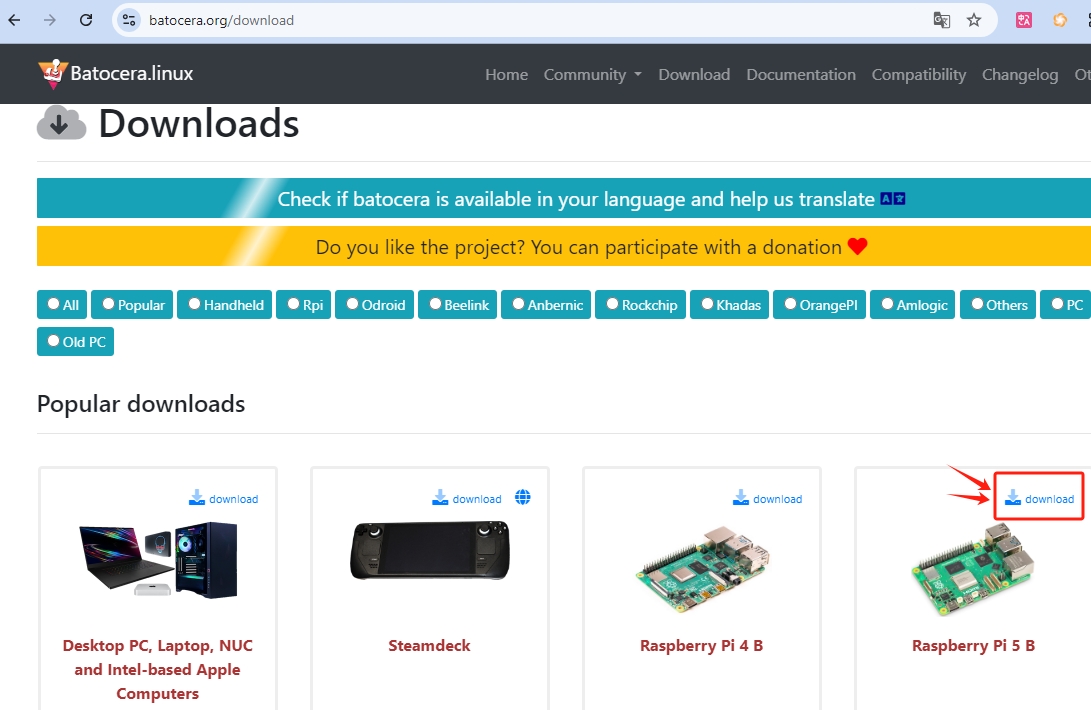
First, navigate to the Batocera.linux download page, select Raspberry Pi 5 B, and click to download.
Insert your SD card into your computer or laptop using a Reader.
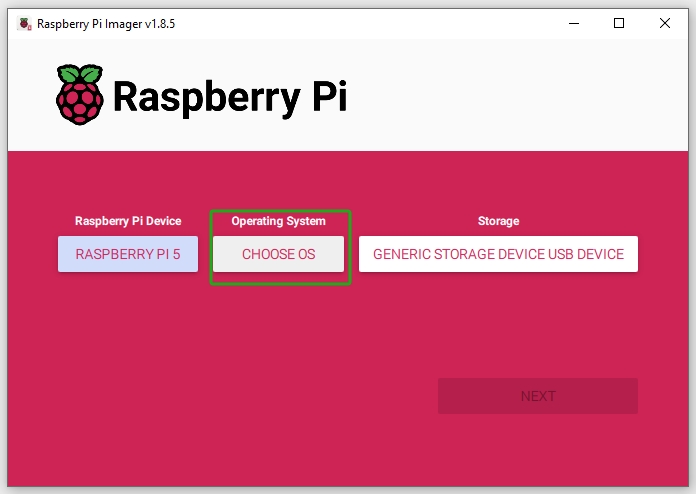
Within the Raspberry Pi Imager, click on the Operating System tab.
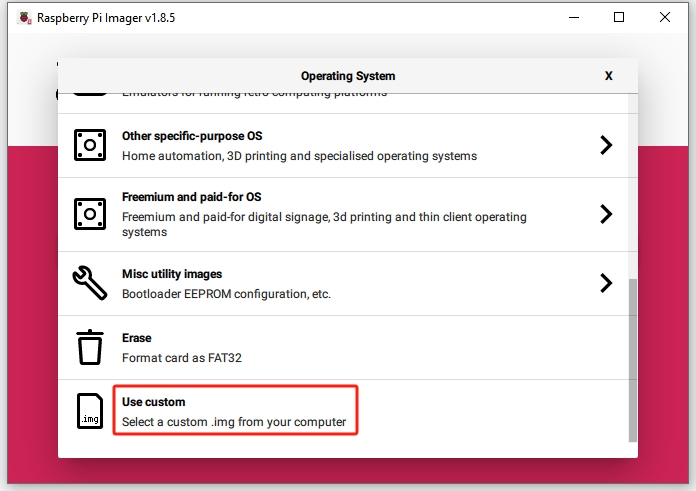
Scroll down to the bottom of the page and select Use Custom.
Choose the system file you have just downloaded,
batocera-xxx-xx-xxxxxxxx.img.gz, and then click Open.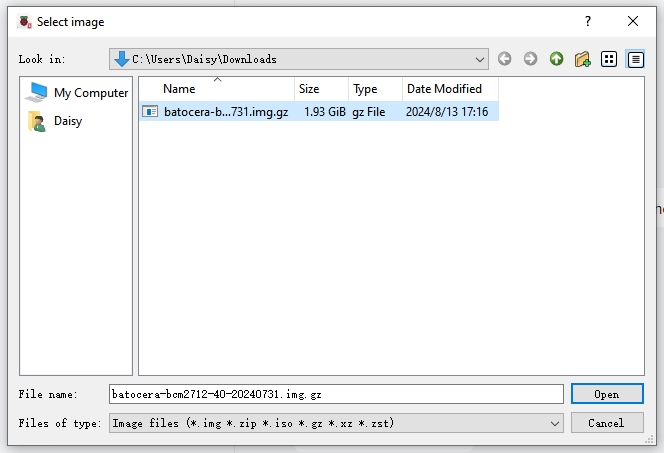
Click Choose Storage and select the appropriate storage device for the installation.
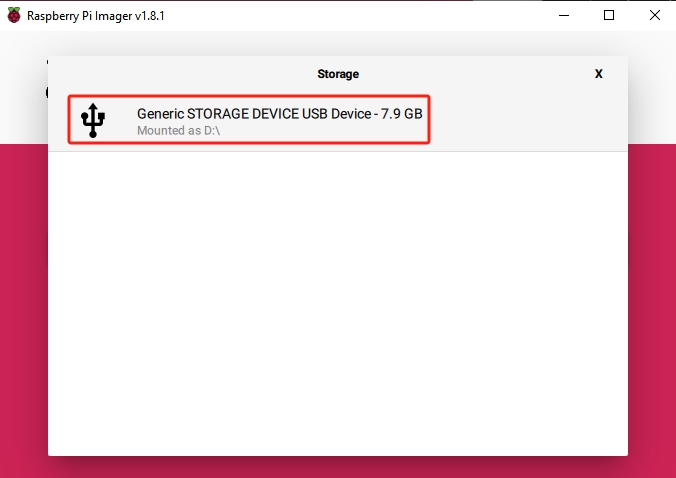
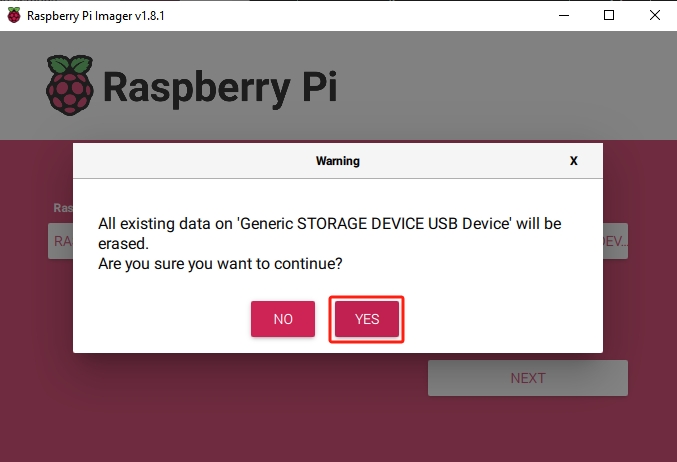
Now you can click NEXT. If the storage device contains existing data, ensure you back it up to prevent data loss. Proceed by clicking Yes if no backup is needed.
When you see the “Write Successful” popup, your image has been completely written and verified. You’re now ready to boot a Raspberry Pi from the Micro SD Card!