Note
Hello, welcome to the SunFounder Raspberry Pi & Arduino & ESP32 Enthusiasts Community on Facebook! Dive deeper into Raspberry Pi, Arduino, and ESP32 with fellow enthusiasts.
Why Join?
Expert Support: Solve post-sale issues and technical challenges with help from our community and team.
Learn & Share: Exchange tips and tutorials to enhance your skills.
Exclusive Previews: Get early access to new product announcements and sneak peeks.
Special Discounts: Enjoy exclusive discounts on our newest products.
Festive Promotions and Giveaways: Take part in giveaways and holiday promotions.
👉 Ready to explore and create with us? Click [here] and join today!
12. Play PiDog with APP
In this lesson, you’ll learn how to use the SunFounder Controller App to control your PiDog. This approach makes controlling your robotic dog more intuitive and interactive.
You need to download the APP on your phone/tablet first, then connect to the WLAN as PiDog, and finally create your own remote control on SunFounder Controller to control PiDog.
Control Pidog with App
To control PiDog via the SunFounder Controller App, follow these steps:
Install SunFounder Controller from APP Store(iOS) or Google Play(Android).
Set Up Required Modules.
The
robot-hat,vilib, andpicar-xmodules need to be installed first, for details see: 5. Install All the Modules(Important) section.robot-hatvilibpicar-x
Then, install the
sunfounder-controllermodule:cd ~ git clone https://github.com/sunfounder/sunfounder-controller.git cd ~/sunfounder-controller sudo python3 setup.py install
Execute the following commands to start the control script:
cd ~/pidog/examples
sudo python3 12_app_control.py
Once the script runs successfully, you’ll see a prompt like this:
Running on: http://192.168.18.138:9000/mjpg

* Serving Flask app "vilib.vilib" (lazy loading)
* Environment: development
* Debug mode: off
* Running on http://0.0.0.0:9000/ (Press CTRL+C to quit)
This indicates that your PiDog is ready for network communication.
Connect PiDog and Sunfounder Controller.
Connect your phone/tablet to the same WLAN as PiDog.
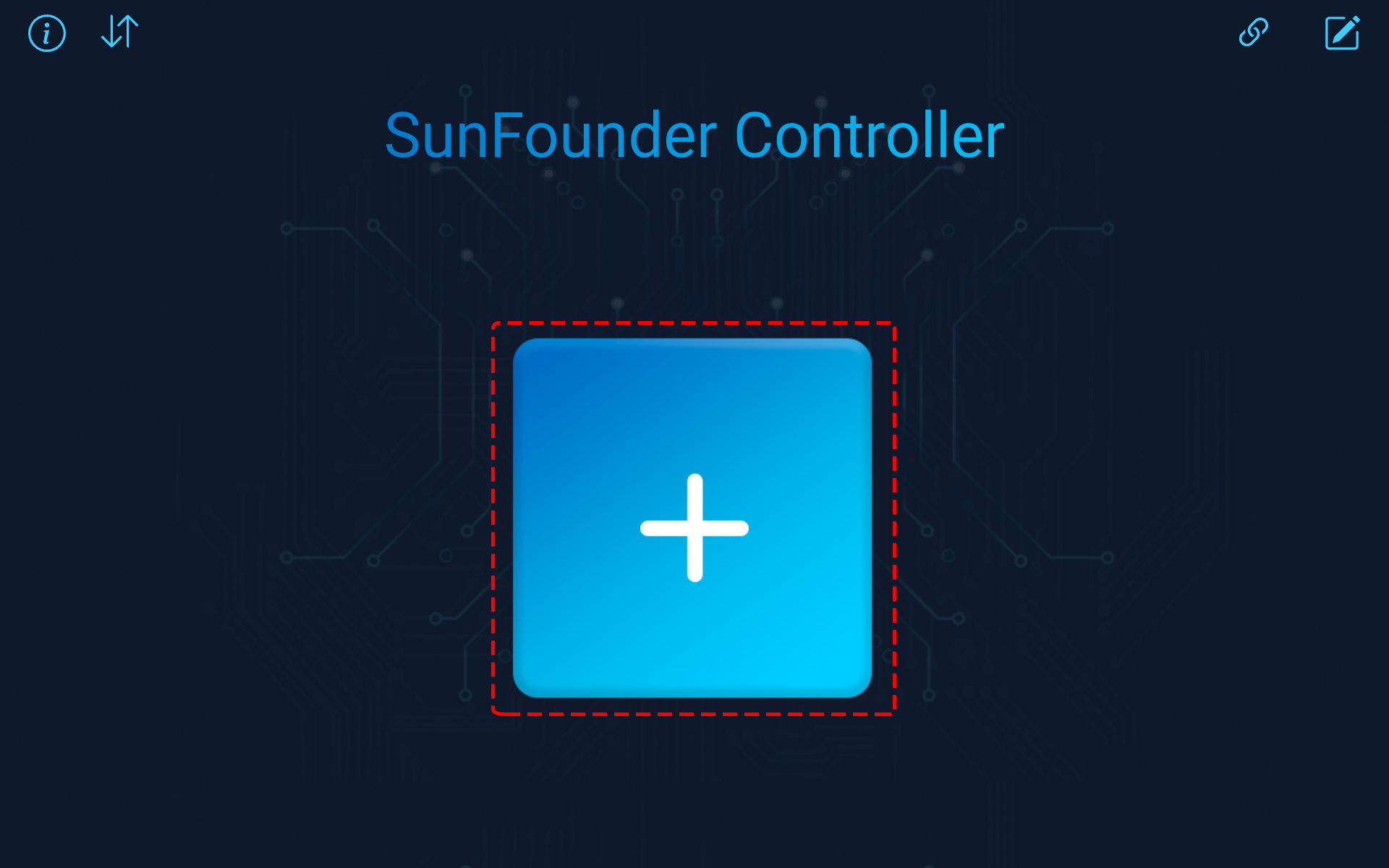
Open the Sunfounder Controller APP. Click the + icon to add a controller.
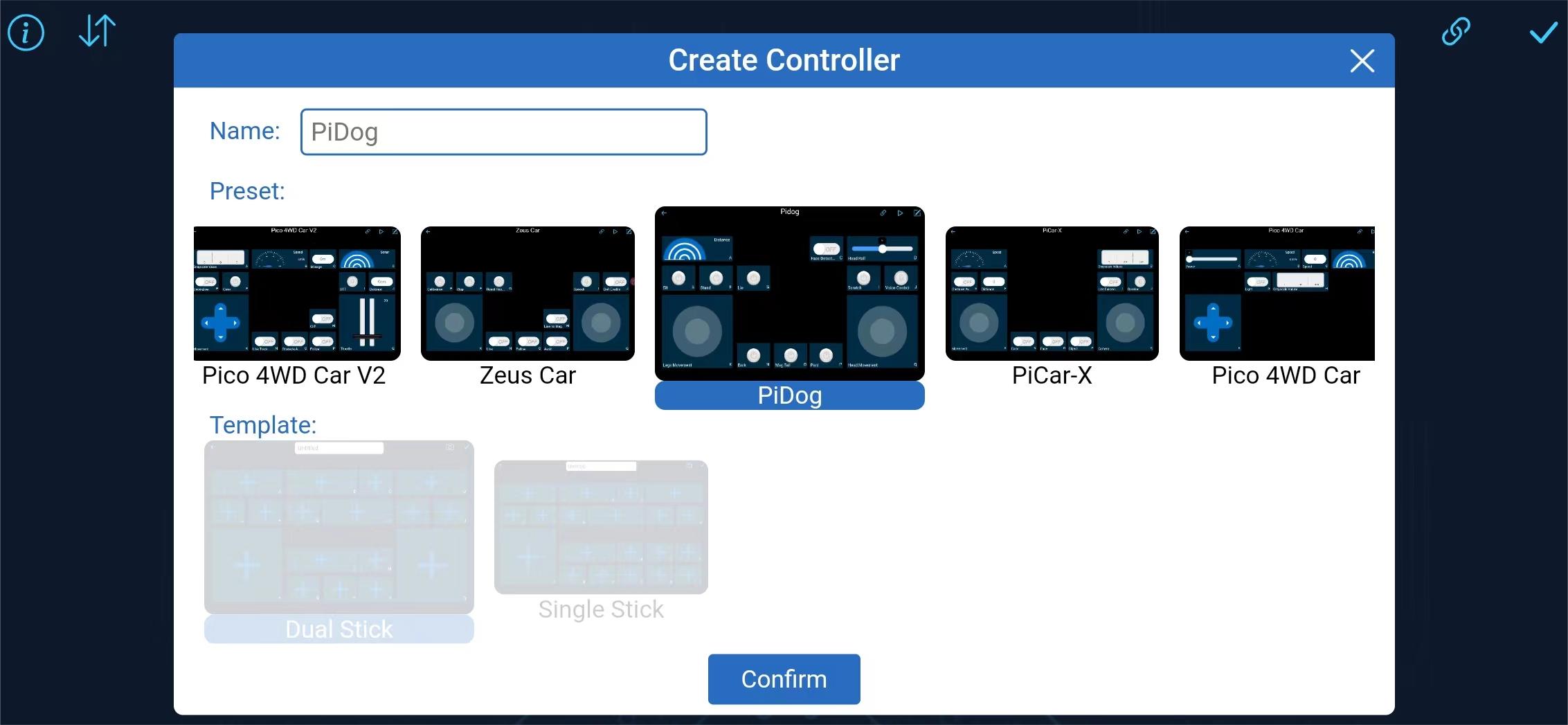
Preset controllers are available for some products, here we choose PiDog. Give it a name, or simply tap Confirm.
Once inside, the app will automatically search for the Mydog. After a moment, you will see a prompt saying “Connected Successfully.”
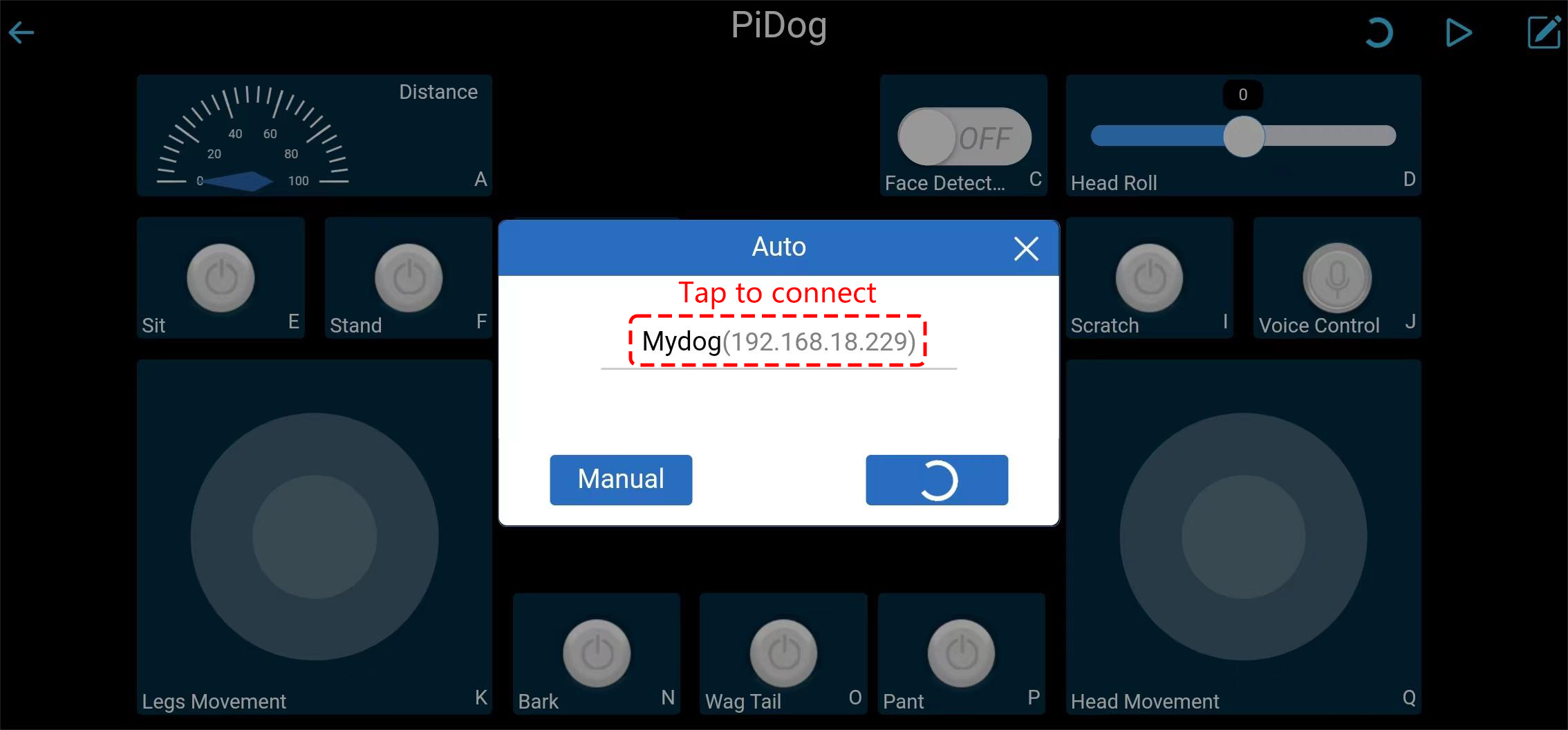
Note
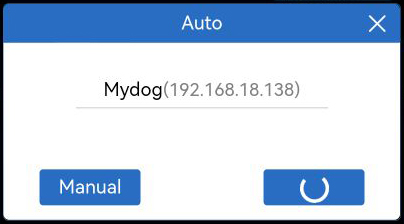
You can also manually click the
 button. Wait a few seconds, MyDog(IP) will appear, click it to connect.
Run the Controller.
When the “Connected Successfully” prompt appears, tap the ▶ button in the upper right corner.
The picture taken by the camera will appear on the APP, and now you can control your PiDog with these widgets.
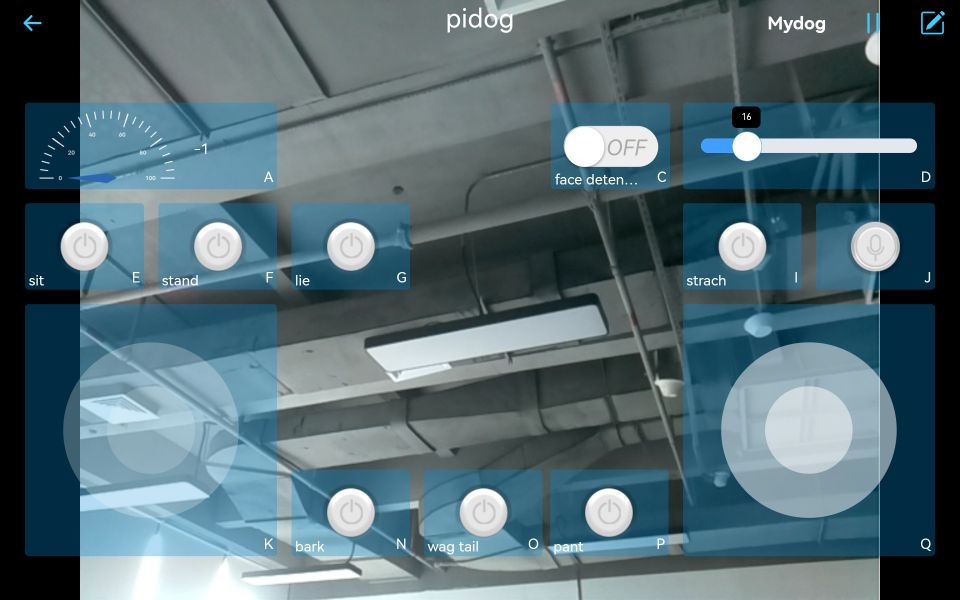
Here are the functions of the widgets.
A: Detect the obstacle distance, that is, the reading of the ultrasonic module.
C: Turn on/off face detection.
D: Control PiDog’s head tilt angle (tilt head).
E: Sit.
F: Stand.
G: Lie.
I: Scratch PiDog’s head.
N: Bark.
O: Wag tail.
P: Pant.
K: Control PiDog’s movement (forward, backward, left and right).
Q: Controls the orientation of PiDog’s head.
J: Switch to voice control mode. It supports the following voice commands:
forwardbackwardturn leftturn righttrotstoplie downstand upsitbarkbark harderpantwag tailshake headstretchdoze offpush-uphowlingtwist bodyscratchhandshakehigh five
Autostart PiDog on Boot
To avoid manually running the 12_app_control.py script every time, you can configure PiDog to start the script automatically upon boot:
How to set this up?
Execute the following commands to install and configure the
pidog_appapplication:cd ~/pidog/bin sudo bash pidog_app_install.sh
When prompted, input
yto reboot the PiDog.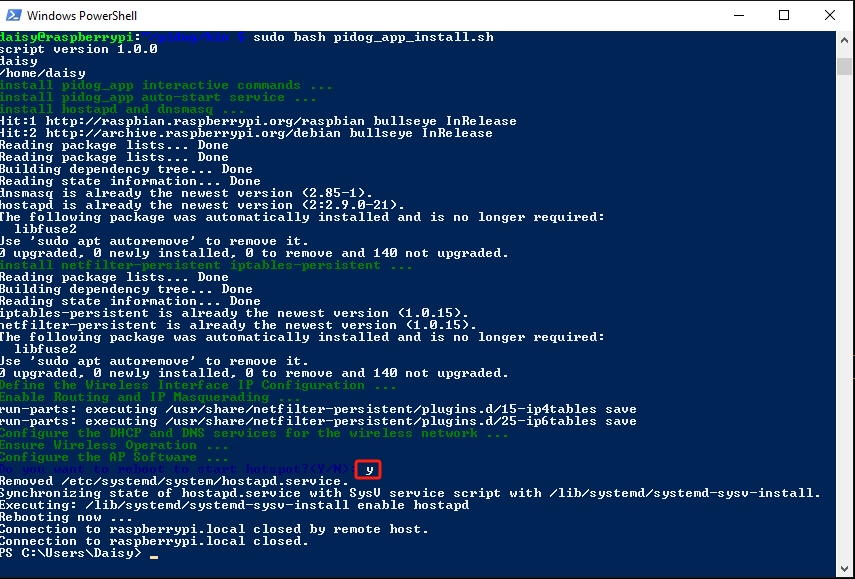
After rebooting, PiDog will automatically start the control script. Then you can Control Pidog with App.
Warning
If you wish to run other scripts, first execute pidog_app disable to disable the autostart.