Windows 用户指南
对于 Windows 10 或更高版本的用户,可以通过以下步骤远程登录 Raspberry Pi:
在 Windows 搜索框中搜索
powershell,右键单击Windows PowerShell,选择以管理员身份运行。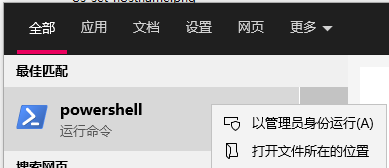
在 PowerShell 中输入以下命令,确定您的 Raspberry Pi 的 IP 地址:
ping -4 <hostname>.local。ping -4 raspberrypi.local
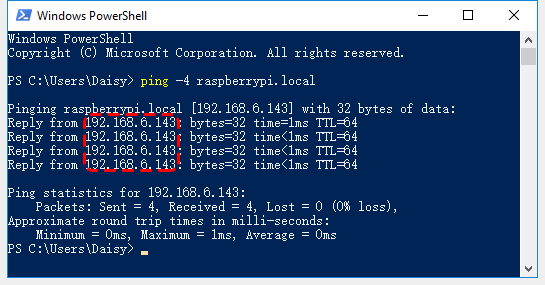
当 Raspberry Pi 连接到网络后,其 IP 地址将显示在屏幕上。
如果终端显示
Ping request could not find host pi.local. Please check the name and try again.,请核实输入的主机名是否正确。如果仍无法获取 IP 地址,请检查 Raspberry Pi 的网络或 WiFi 设置。
确认 IP 地址后,通过以下命令登录 Raspberry Pi:
ssh <username>@<hostname>.local或ssh <username>@<IP address>。ssh pi@raspberrypi.local
警告
如果出现
The term 'ssh' is not recognized as the name of a cmdlet...的错误提示,可能是您的系统未预安装 SSH 工具。在这种情况下,请按照 通过 Powershell 安装 OpenSSH 手动安装 OpenSSH,或参考 PuTTY 使用第三方工具。首次登录时,系统会显示一条安全提示信息。输入
yes继续。The authenticity of host 'raspberrypi.local (2400:2410:2101:5800:635b:f0b6:2662:8cba)' can't be established. ED25519 key fingerprint is SHA256:oo7x3ZSgAo032wD1tE8eW0fFM/kmewIvRwkBys6XRwg. Are you sure you want to continue connecting (yes/no/[fingerprint])?
输入您之前设置的密码。请注意,密码输入时不会显示在屏幕上,这是标准的安全机制。
备注
输入密码时字符不显示属于正常现象。请确保输入正确的密码。
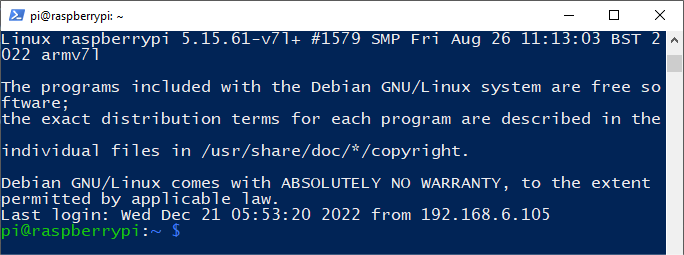
连接成功后,您的 Raspberry Pi 已准备好进行远程操作。