Basic Guide
PiPower 5 is a versatile UPS solution designed for seamless integration with Raspberry Pi devices. This guide provides the quickest way to get started with PiPower 5.
For information on advanced features, refer to the “Hardware Overview” and “Software Configuration” sections.
Assemble your PiPower 5 according to this guide: Assembly Instructions
Charge the PiPower 5.
Before using your PiPower 5, please charge it fully. A full charge prevents battery issues and ensures optimal performance.
It is recommended to use a PD power supply rated at 27W or higher, or a DC 5.5-2.1 power supply to charge the device.
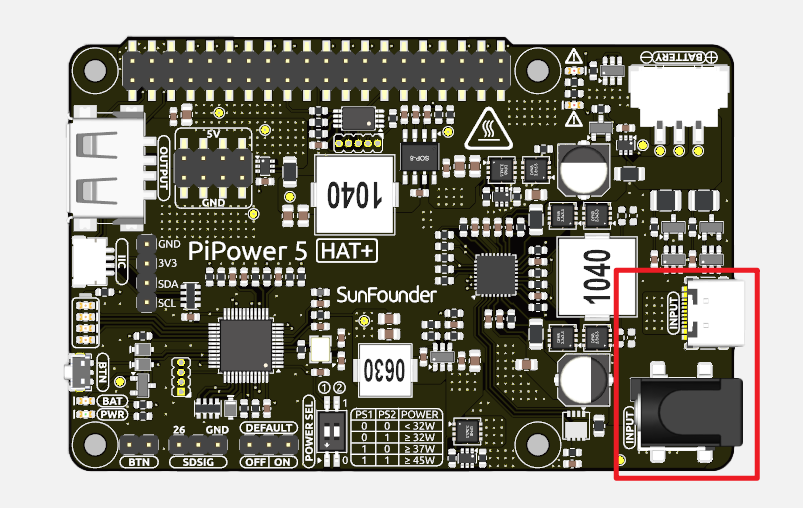
During charging, the indicator light will blink.
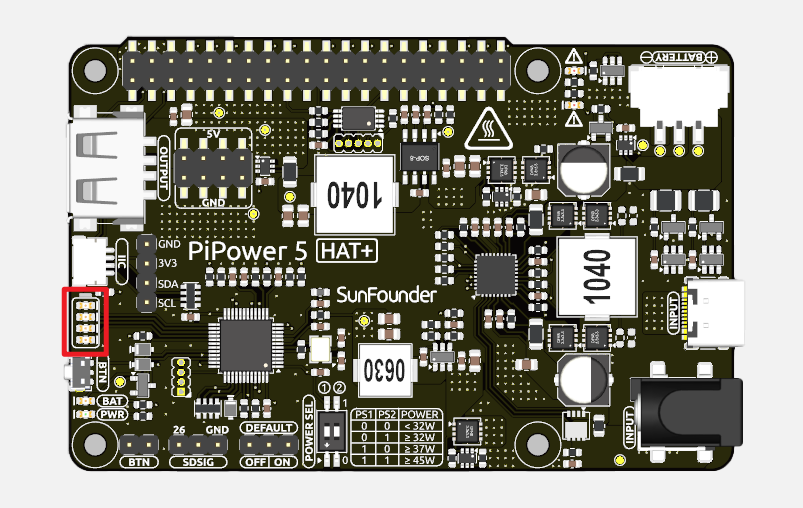
Battery status is indicated by the number of lit LEDs:
4 LEDs lit: Battery >80%
3 LEDs lit: 60%< Battery <80%
2 LEDs lit: 40%< Battery <60%
1 LED lit: 20%< Battery <40%
First LED flashing: Battery <20%
LEDs incrementally light up in a cycle: Charging
Middle two LEDs flashing: Waiting for shutdown signal
All LEDs off: Unpowered or in sleep mode
Output power to the target device.
If you’re using a Raspberry Pi, no additional wiring is necessary. PiPower 5 will supply power to the Raspberry Pi through GPIO.
For other devices, use the USB-A port on PiPower to power your device, or connect to the 5V/GND pins located next to the USB-A port.
Press the power button once to power your target device
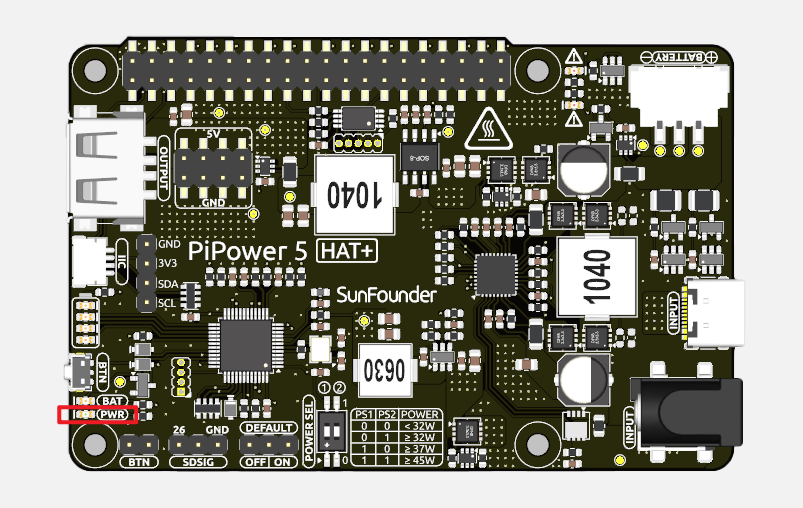
You will see the PWR LED light up, and your target device will receive power from PiPower 5.
Install PiPower 5 Tool
To enable the PiPower 5 power button to control the shutdown of a connected Raspberry Pi or other Linux devices, follow these steps to install the PiPower 5 tool:
Download the code
git clone https://github.com/sunfounder/pipower5
Navigate to the directory:
cd pipower5
Run the installation script:
sudo python3 install.py
This command also installs a web dashboard that runs on port 34001 of your device. The dashboard provides access to PiPower and Raspberry Pi device information. If you do not need the web dashboard, use this command instead:
sudo python install.py --disable-dashboard
After installation, you will be prompted to restart the system. Enter
Yand press Enter to reboot. Once rebooted, the PiPower 5 safe shutdown service will start automatically.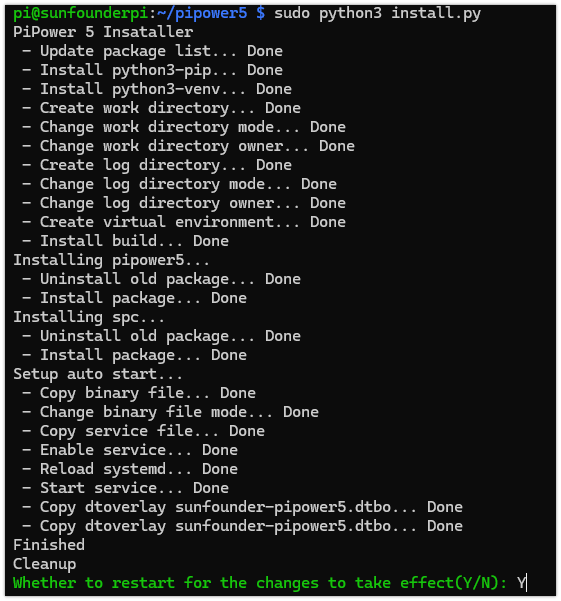
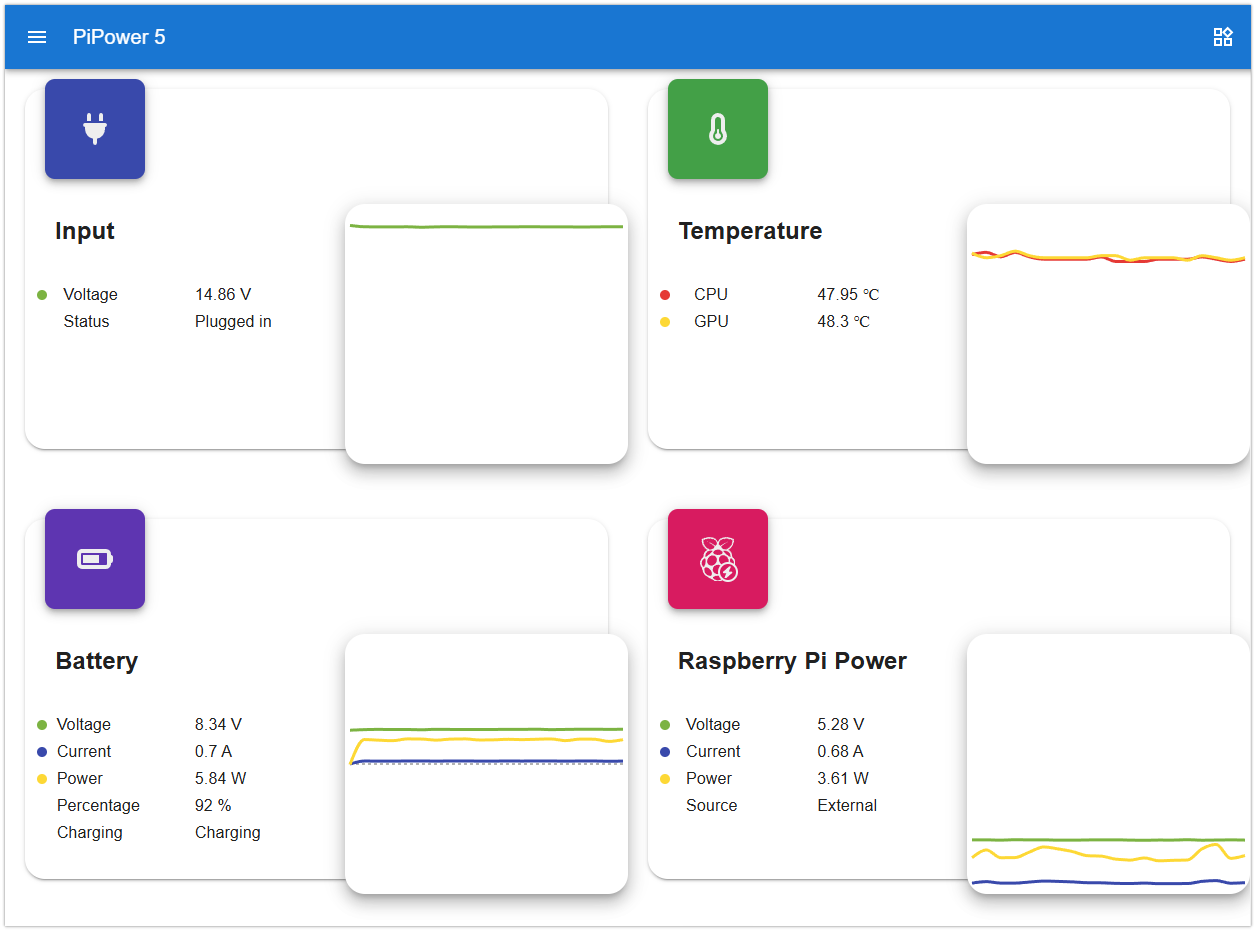
Web dashboard
You can access the dashboard by navigating to your device’s port 34001. The dashboard provides detailed information about PiPower and Raspberry Pi.
Turn Off the Power After Use
Hold for more than 5 seconds: Turns off the output directly.
Hold for 2 seconds (until the middle two battery LEDs light up) and release: Send a shutdown request via I2C for a safe shutdown.
Note
This feature requires the PiPower 5 Tool to be installed. The PiPower 5 Tool handles the shutdown signal from PiPower 5 to safely power down the Raspberry Pi. For more information about the PiPower 5 Tool, see PiPower 5 Tool.
During charging, the indicator remains lit even in the off state until fully charged.